Walkthrough: install Omniscope and test Insight Explorer
Modified on Tue, 28 Apr at 7:26 PM
This walkthrough shows the complete first-run flow from installing Omniscope on a new machine to testing an AI-powered Insight Explorer report.
It is intended as a practical companion to the main AI setup article. For detailed information about AI providers, integrations, model selection and permissions, see How to enable AI in Omniscope.
This article combines installation, activation, AI configuration and a first Insight Explorer test. If Omniscope is already installed, you can skip to Configure AI settings.
Before you begin
You will need:
- the Omniscope installer
- a valid Omniscope licence, trial, or access to the free edition
- an API key for your chosen AI provider, such as OpenAI
- access to the Omniscope Admin area
- one or more datasets to test Insight Explorer
Install Omniscope
Download the latest Omniscope installer from https://visokio.com/omniscope/ and run the setup wizard.
This step depends on your OS; See how to install it on Windows, Mac and Linux.
Once the installation is complete, launch Omniscope Evo.
N.B. On first launch, your operating system may ask you to allow networks to access the bundled JDK. Approve this prompt to continue.
Activate Omniscope
When Omniscope starts for the first time, choose how you want to activate or use the application.
You can:
- register for a free trial- enter or purchase a licence
- use the free edition
If you already have a licence key, enter it when prompted.
After activation, Omniscope restarts automatically.
Open the Omniscope interface
Omniscope runs locally, but the user interface opens in a web browser.
After launch, the browser interface should open automatically.
You can access Omniscope from the system tray. From there, you can open the browser interface, access the Admin area, or stop the application.
Configure AI settings
To configure AI, go to:
Admin > AI Settings
This opens the root-level AI settings. These settings apply server-wide unless they are overridden at folder level.
For detailed information about folder-level AI settings, inheritance and policy control, see How to enable AI in Omniscope.
Add an AI provider
In AI Settings, add an AI provider.
For example, choose OpenAI.
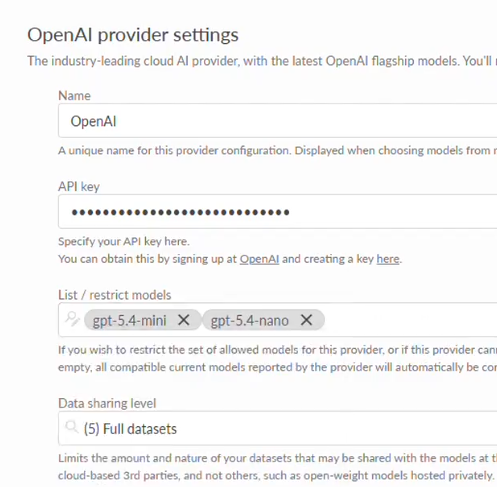
Enter the API key for the provider.
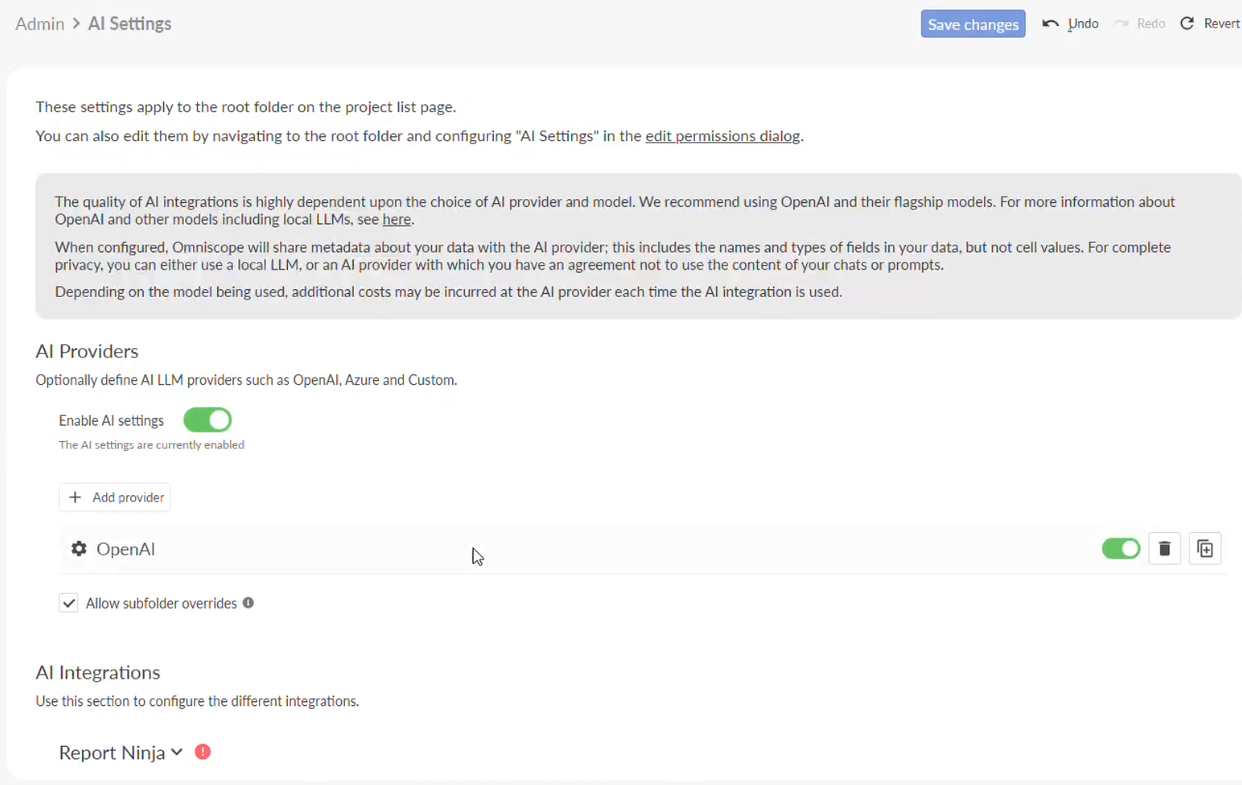
The provider allows Omniscope to connect to an AI/LLM provider and use the available models to power some features.
Select available models
After adding the provider, choose which models should be available in Omniscope.
You can leave the default model list available, or restrict it to specific models.
Restricting models can help control cost, performance and access.
The model list may also show useful information such as estimated token pricing and supported capabilities.
Enable the Insight Explorer integration
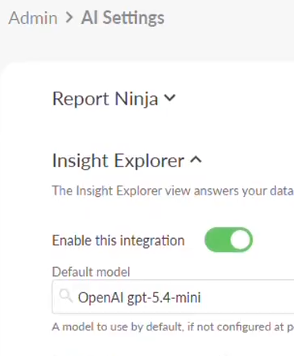
After configuring the provider, enable the AI integrations you want to use.
For this walkthrough, make sure Insight Explorer is enabled and has a default model assigned.
Each integration can use its own default model. This allows you to choose different models for different AI-powered features, depending on the expected workload, cost and quality requirements.
Apply the settings when complete.
Create a test project
Create or open a project and add one or more datasets.
Insight Explorer can work across multiple data sources, so this is a useful way to confirm that the AI configuration is working correctly.
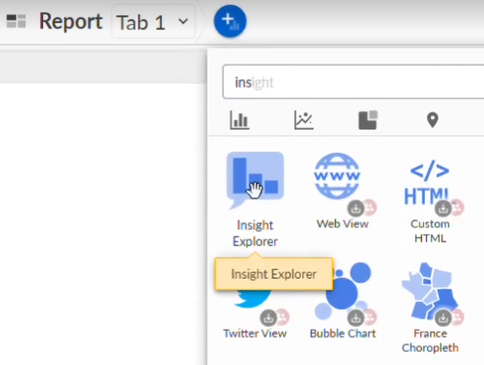
Open Insight Explorer
You can use Insight Explorer as either:
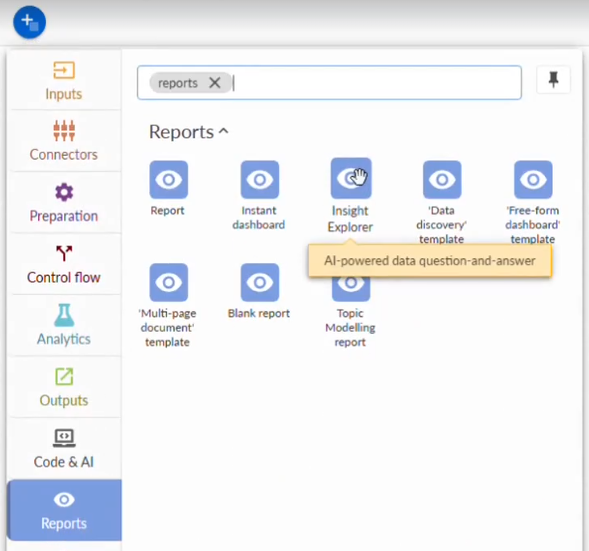
- a report template
- a view added to an existing report
To test the setup quickly, connect your dataset to a new Insight Explorer report template and open the report.
If the AI provider, model, integration settings are configured correctly, the Insight Explorer report template and view should be available and ready to use.
Ask a question
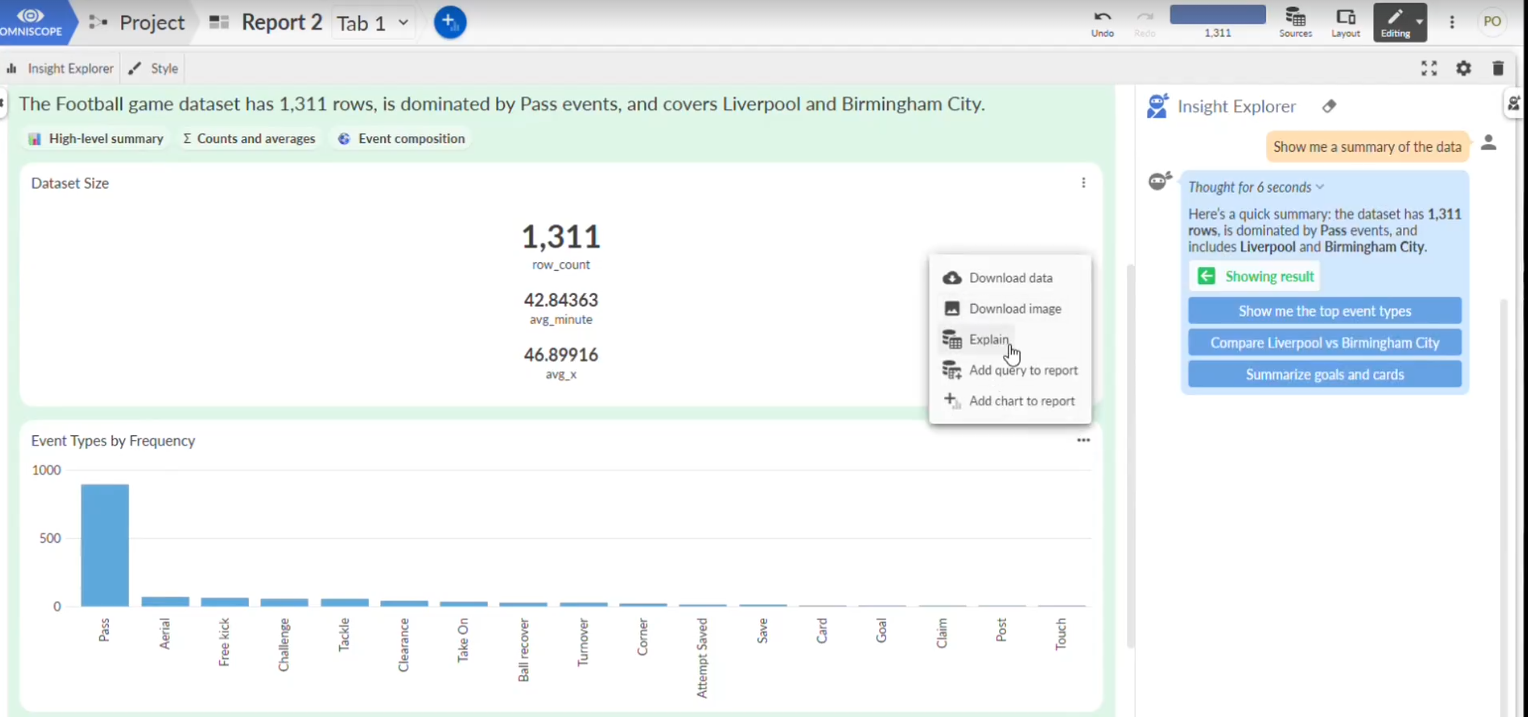
Ask a natural-language question about your data.
Insight Explorer interprets the question, plans how to answer it, and uses Omniscope to query and analyse the data.
The response may include:
- an answer
- generated charts or visualisations
- interim results
- explanations
- query lineage
- details of the transformations used
Review these outputs to verify how the answer was produced.
Reuse generated outputs
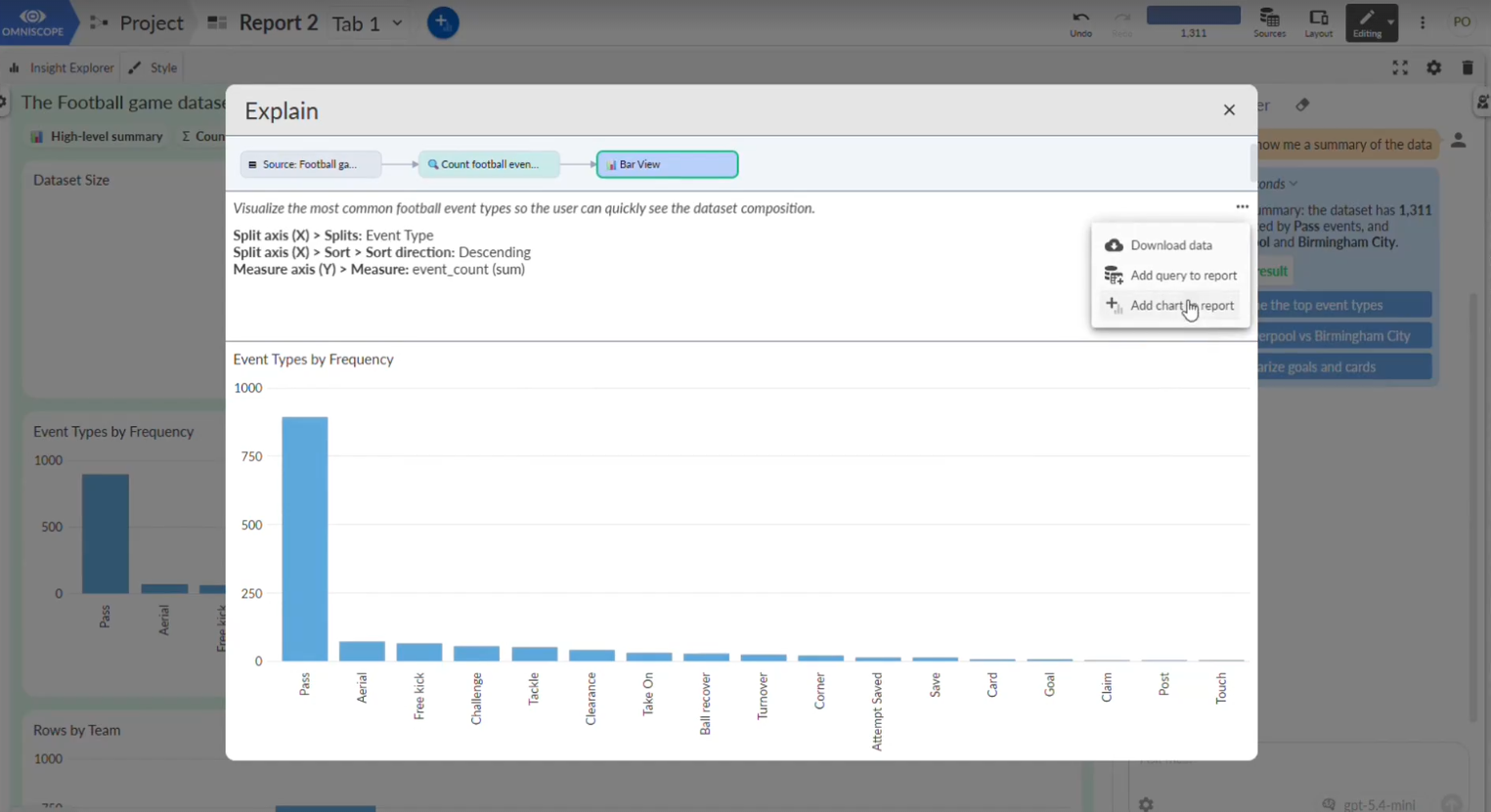
Outputs generated by Insight Explorer can be reused in your report.
For example, if Insight Explorer creates a useful chart, you can add it to the report.
You can also inspect the query lineage and use generated data sources or transformations as building blocks for further analysis.
This makes Insight Explorer useful not only for answering questions, but also for exploring data and building report narratives.
Summary
This walkthrough covers the complete flow from installation to testing Insight Explorer:
- Install Omniscope Evo.
- Activate Omniscope.
- Open the browser-based interface.
- Go to Admin > AI Settings.
- Add an AI provider and API key.
- Select or restrict the available models.
- Enable the Insight Explorer integration.
- Create or open a project with data.
- Open Insight Explorer.
- Ask a question and review the generated outputs.
- Reuse useful charts, transformations or data sources in your report.
For the full AI configuration reference, including providers, integrations, and model recommendations, see How to enable AI in Omniscope and the Insight Explorer full guide.
Was this article helpful?
That’s Great!
Thank you for your feedback
Sorry! We couldn't be helpful
Thank you for your feedback
Feedback sent
We appreciate your effort and will try to fix the article