Introduction
The AI Decision block uses AI to analyse your data against your criteria. You can categorise customer messages, score product descriptions or ask yes/no questions. The results are added as new fields alongside your original data.
This article shows how to use all three question types with two sample datasets.
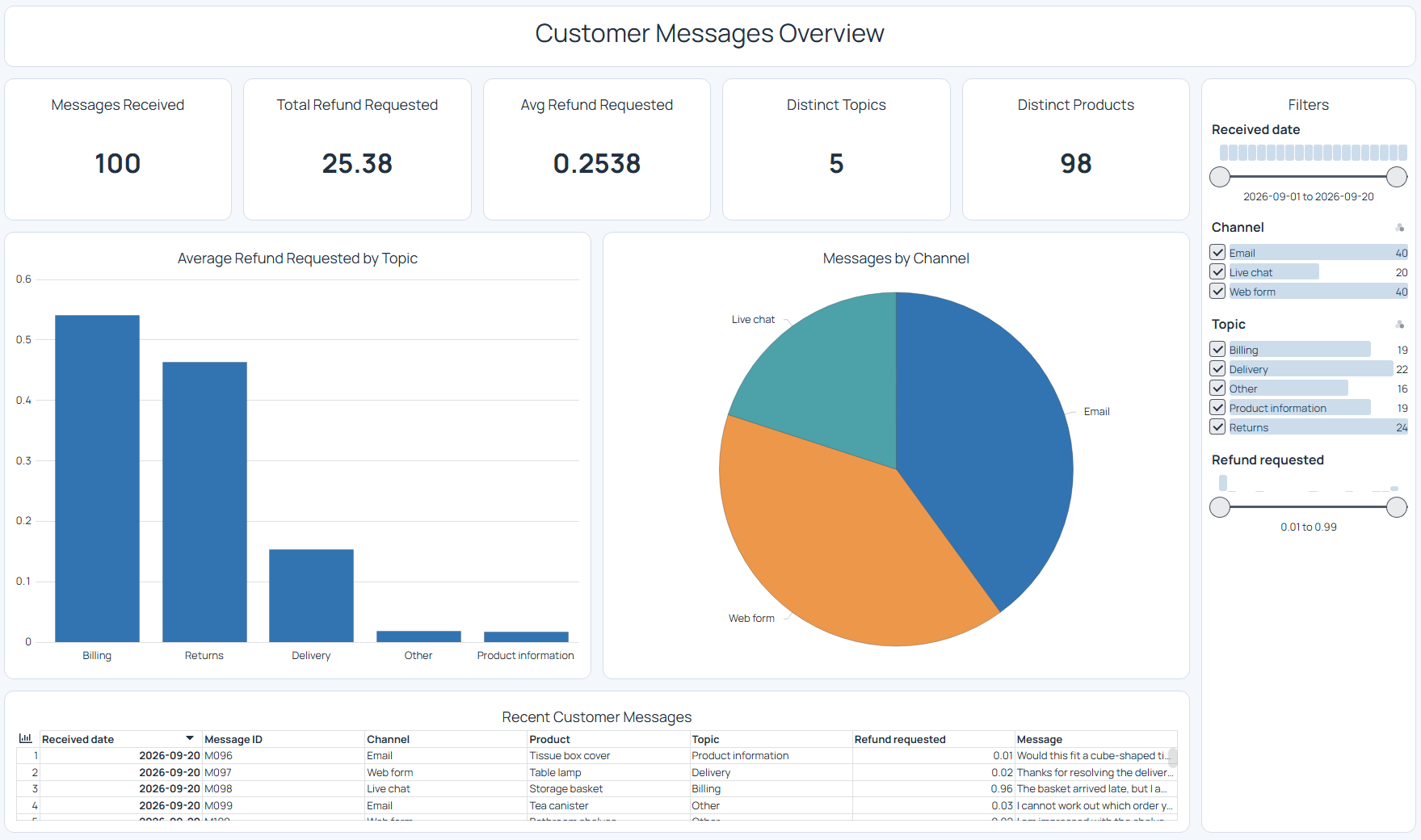
Decision providers
The AI Decision block uses a decision provider configured in Omniscope's AI settings. The examples in this article use Jev, from TypeSafe AI.
The sample data
The samples used in this article are attached:
- customer-messages.csv: 100 fictional messages to an online shop, covering deliveries, returns, payments and product enquiries.
- product-catalogue.csv: 100 fictional products with names, descriptions and prices. Some descriptions are detailed; others need work.
Setup
You need an Omniscope licence with the AI Features Pack and a Jev API key. You can get your key from the TypeSafe console:
https://console.typesafe.ai/
For help with the provider setup, see TypeSafe’s quick-start guide:
https://docs.typesafe.ai/introduction/quickstart
Open Admin > AI Settings. Under AI Providers, add a Jev provider and enter your API key.
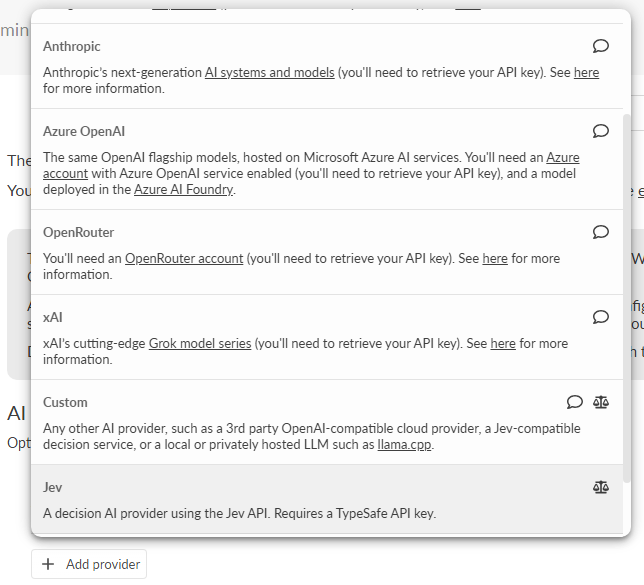 | 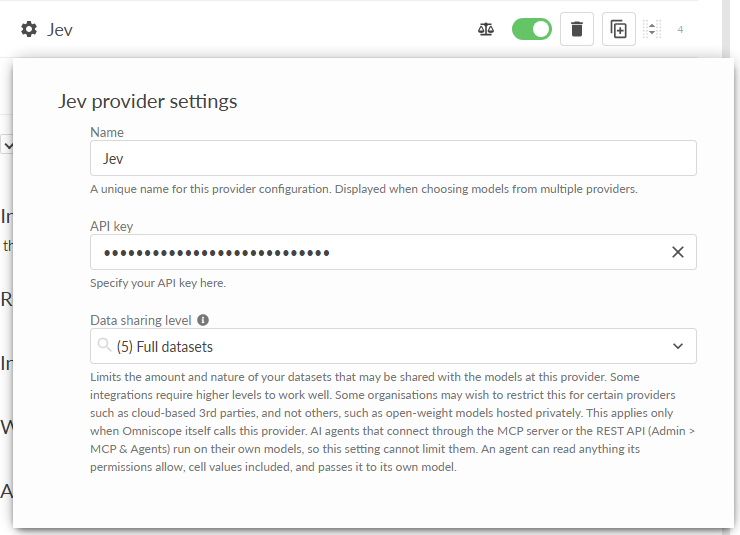 |
Under AI Integrations, ensure Workflow AI Decisions is enabled. Select Jev as the Default model. Save your settings.
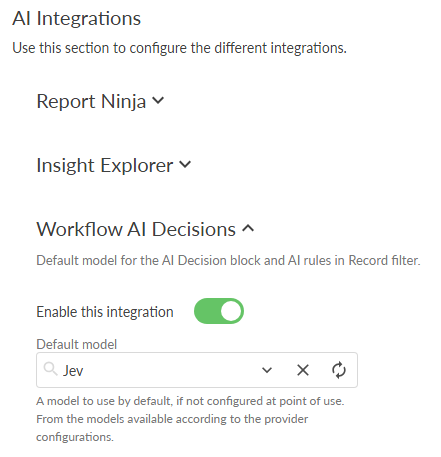
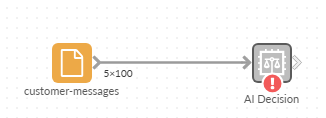
Create a new Omniscope project. Add a File block and select customer-messages.csv, then connect it to an AI Decision block.
Open the AI Decision block options:
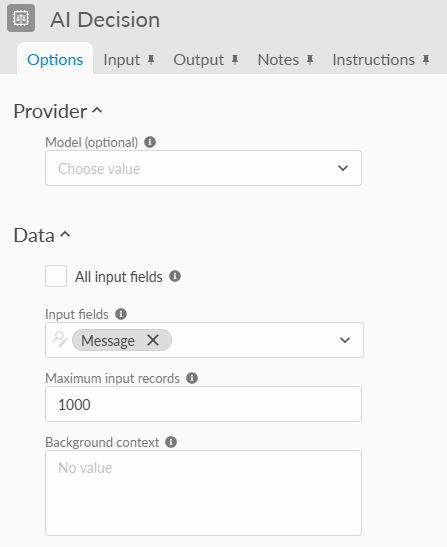
- Leave Model blank to use the integration's default. Select another configured compatible model only if you want to override that default for this block.
- Under Data, select Message as the Input fields.
Categorise customer messages with Choice
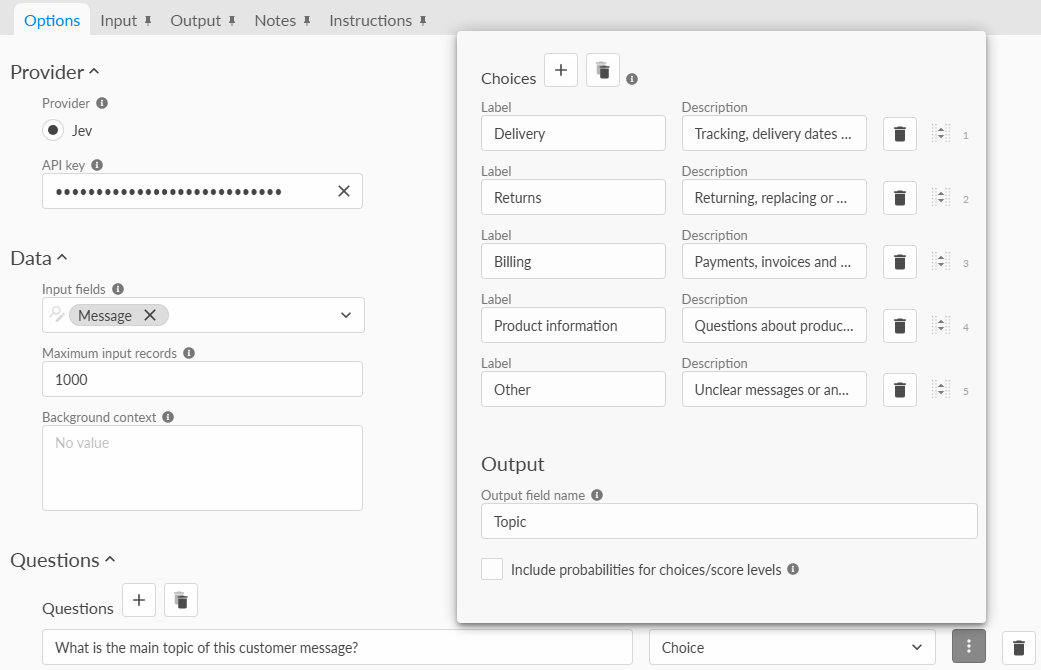
Under questions, add a new question and enter:
- Question: What is the main topic of this customer message?
- Answer type: Choice
- Output field name: Topic.
Click the 3-dot menu at the end of the question and add the following choices with these labels and descriptions:
- Delivery: Tracking, delivery dates and missing parcels
- Returns: Returning, replacing or exchanging goods.
- Billing: Payments, invoices and missing refunds.
- Product information: Questions about products before buying.
- General feedback: Praise, comments and suggestions.
- Other: Unclear messages or anything else
Untick Include probabilities for choices/score levels.
Background context is optional. Leave it blank for these examples. It can help when your data contains company-specific terms or rules, such as which team handles a particular service.
Execute the block.
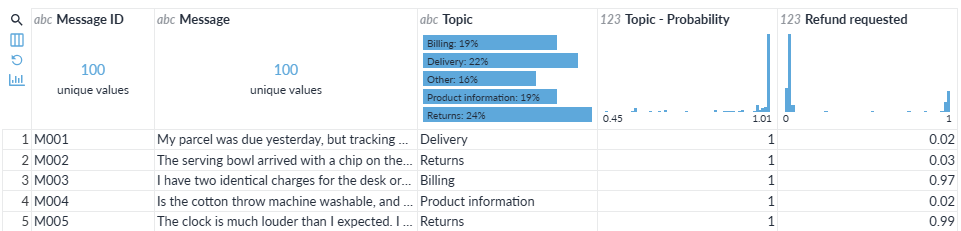
In the Output data, you should see a Topic field with the selected label. Topic - Probability shows its estimated probability from 0 to 1. A value of 0.95 means 95%; it does not guarantee the answer is correct.
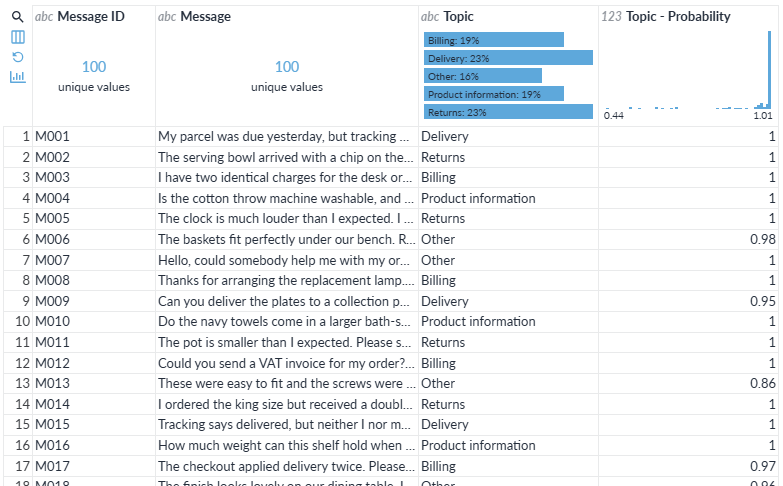
Check M001, which asks about a delivery, and M003 which reports a duplicate charge. Some messages cover several topics, so review a few of those too.
Add a Yes/No question
Keep the Topic question and click Add question. Configure the question as follows:
- Question: Is the customer requesting a refund?
- Answer type: Yes/No (Noul)
- Output field name: Refund requested
- Meaning of yes: Asking for money back or chasing a missing refund
- Meaning of no: No refund requested, including exchange-only requests

Execute the block again. The block now answers both questions for each message. M002 asks for an exchange, M005 asks for a refund.
You can ask more questions in the same way, giving each a different Output field name. They are answered independently using the same input fields.
Categorise a product catalogue
The same approach works for product data. Add a File block and select product-catalogue.csv. Connect it to a new AI Decision block.
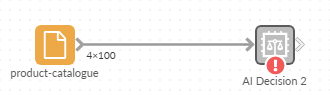
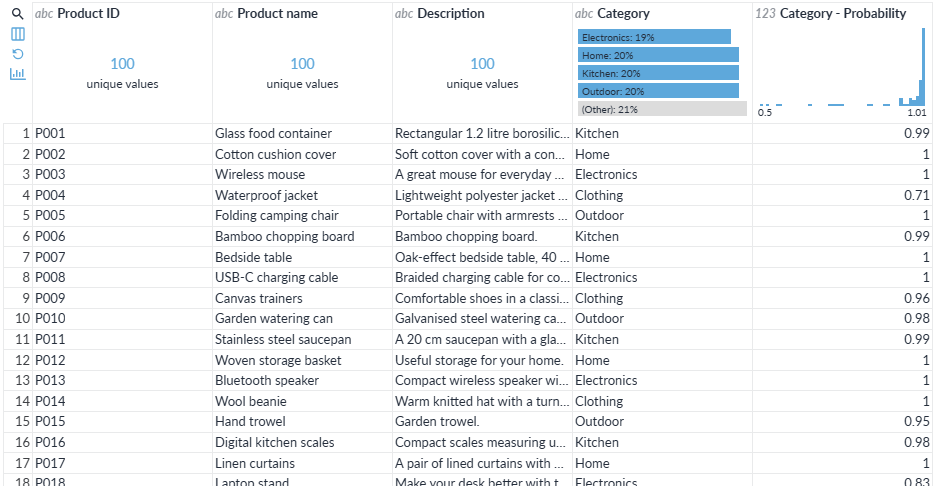
Select Product name and Description as the Input fields. Configure the following Choice question:
- Question: Which category does this product belong to?
- Answer type: Choice
- Output field name: Category
Add these labels. This time we will omit descriptions.
- Kitchen
- Home
- Electronics
- Clothing
- Outdoor
- Other

Untick Include probabilities for choices/score levels and execute the block. You now have a Category field you can use to organise or filter the catalogue.
Score product descriptions
In the same product block, add a Score question to find listings that could use better descriptions:
- Question: How detailed is the product description?
- Answer type: Score
- Output field name: Description detail
Enter these levels in order, with their descriptions:
- Basic: Little more than the product name or a vague claim.
- Some detail: A few useful features, but limited in practical information.
- Detailed: Clear features and practical details, such as dimensions, materials, care or compatibility.
Execute the block again. The catalogue now has both Category and Description detail answer fields.
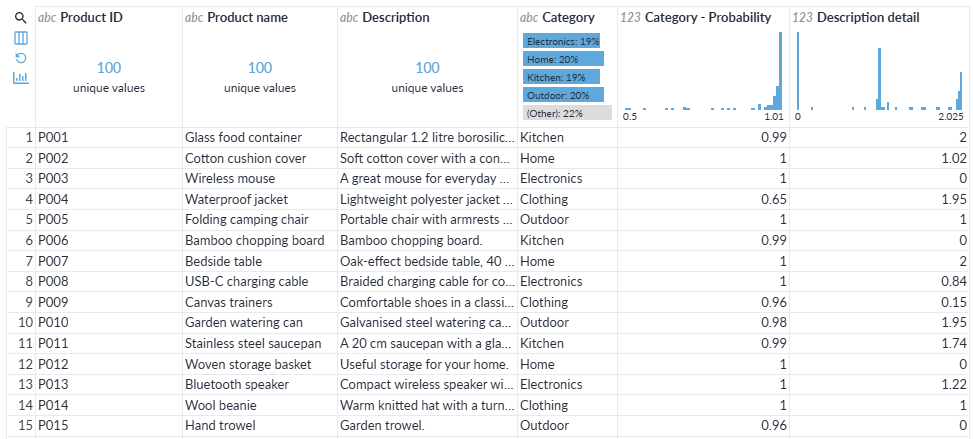
Score levels start at 0, so this scale runs from 0 to 2. Results can fall between levels: equal probability on Some detail (1) and Detailed (2) gives a score of 1.5. The optional probability columns show the weight given to each level.
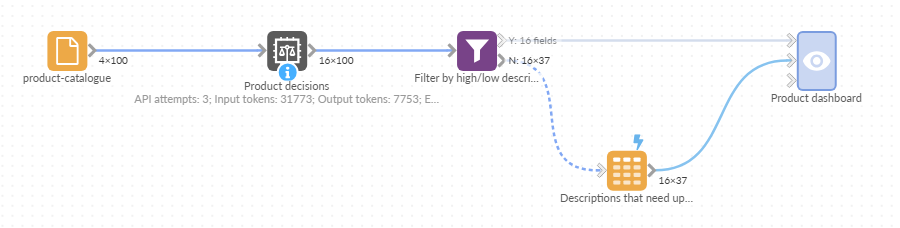
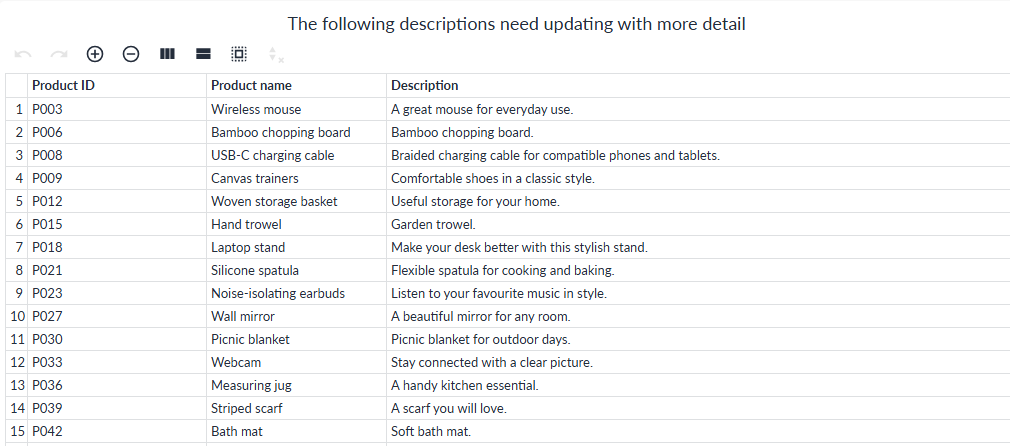
Sort Description detail from lowest to highest to find listings to review. Compare the brief description for P003 with the fuller one for P001. You could then filter the low-scoring listings and email them to your product team, or load them into a Data Table block connected to a report, where your team can improve the descriptions in an Editable Table view.
Advanced options
Batch records into requests
Batching is off by default. Each distinct non-blank record is sent in one request with all its questions.
Turn batching on to send several records per request. Fewer network round trips can make short records with one or two questions faster to process. Try the customer messages with just the Topic question as a simple comparison. With batching on, record values are repeated for each question. Long records with several questions can therefore use more tokens.
Include provider confidence column
This adds a confidence value from 0 to 1 for Choice and Score answers. High confidence means the probabilities favour one category or level; low confidence means they are more spread out.
The winning probability describes one answer. Confidence summarises the whole distribution. Neither should be treated as a guarantee of correctness, but low confidence can help you identify answers worth reviewing.
For more information see:
https://docs.typesafe.ai/confidence
Input token price and cost
Input token price (USD per million) controls the cost estimate shown by Omniscope. Leave it blank to use the price in the provider's model profile. If no price is available, the estimated cost remains unknown. Enter a value to override the estimate; this does not change what Jev charges.
After execution, the block shows the number of API attempts, input and output tokens, estimated cost and request time in milliseconds.
Preview and record limits
Allow API calls for preview is off by default. Enable it to see AI results for a sample; Maximum preview records defaults to 10. Editing these settings can trigger more requests and charges.
Further reading
For more examples of combining AI decisions with filters, calculations and automation see AI Decision Workflows in Omniscope.
Was this article helpful?
That’s Great!
Thank you for your feedback
Sorry! We couldn't be helpful
Thank you for your feedback
Feedback sent
We appreciate your effort and will try to fix the article