The Text Input block lets you create an editable dataset directly in your workflow. You can enter data manually, copy and paste cells from Excel or load data from another block. It is useful for lookup lists and other tables you want to maintain within a project
Enter data manually
Add a Text Input block to your workflow and open its options. Enter your field names and values in the table, adding rows and fields as needed.
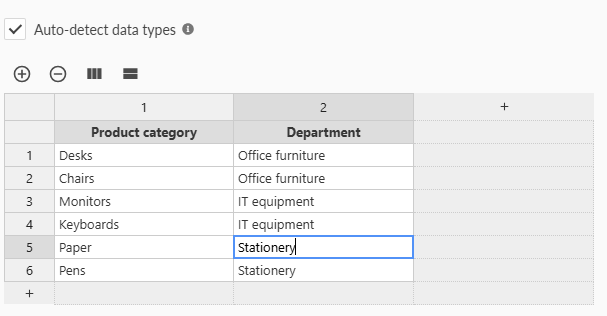
When Auto-detect data types is selected, Omniscope detects the data type of each field (text, numbers or dates) when the block executes. Untick this option if you want all fields to remain text.
Load data from another block
Connect the block containing your data to Text Input.
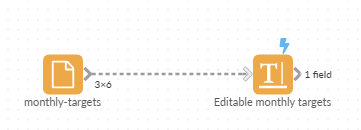
Open the Text Input options and click Fill with input data. This replaces all existing fields and records in the editable table.
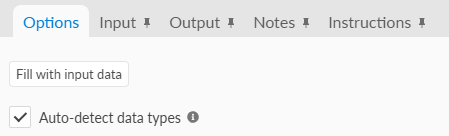
Some sources can be read directly, for other blocks, fully execute the connected block first.
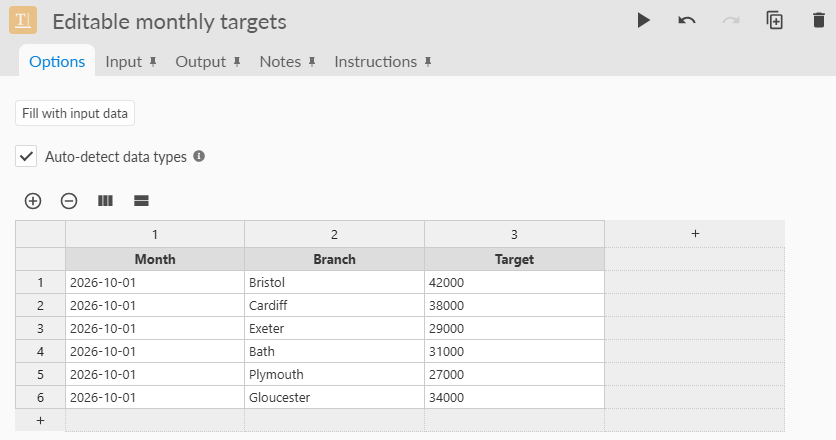
The table is a saved snapshot. Running the workflow or changing the source does not refill it, so your edits are retained. To replace the data with another snapshot, click Fill with input data again.
Filling currently uses a 10,000-cell limit. A warning appears if any rows are omitted.
Was this article helpful?
That’s Great!
Thank you for your feedback
Sorry! We couldn't be helpful
Thank you for your feedback
Feedback sent
We appreciate your effort and will try to fix the article