Project Automations can now tell you how a scheduled run went, and try a failed run again before giving up. Both are configured in the same Automation dialog you already use to set a project's schedule, so there is no new app to learn.
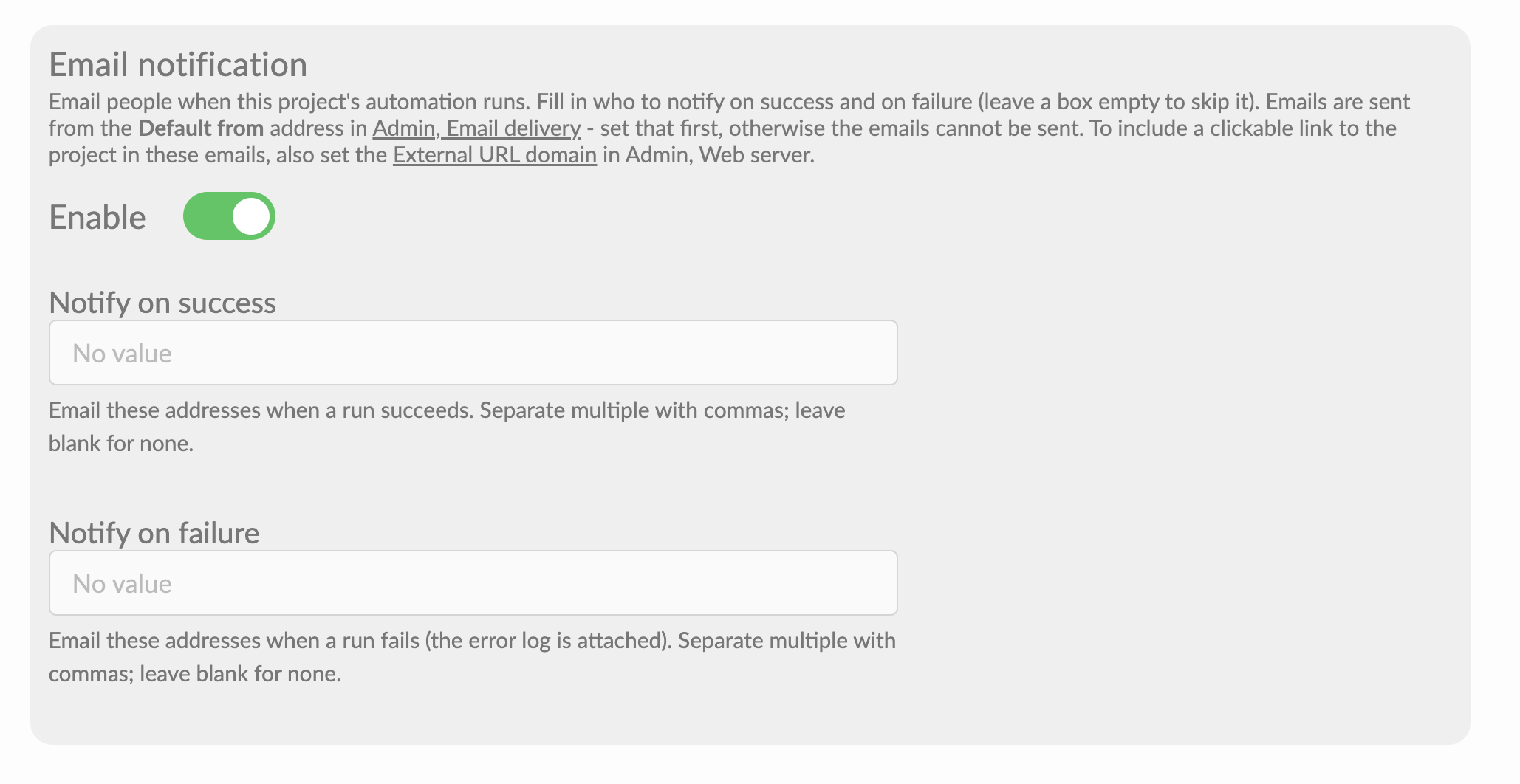
Email notification sends an email each time the project's automation runs. You can notify one set of people on success and a different set on failure.
Retry on failure re-runs an execution that fails, waiting a set time between tries, so a brief problem does not turn into a stale dashboard.
Typical uses:
Email the business team when the morning refresh has finished, with a link to the report
Email whoever maintains the data when a run fails, with the error log attached
Absorb a slow overnight database or a brief network drop by retrying instead of failing
Keep noisy, transient failures from alerting anyone at all
Licence requirement
The same licence gates as the rest of Project Automations apply:
Scheduler Basic for Auto-refresh Reports.
Scheduler Pro for Auto-refresh Reports and Blocks execution.
Email notification and retry work with both, wherever an automation runs. Enterprise plans include Scheduler Pro.
How do I get notified when an automation runs?
Open the project and choose Automation from the three-dots menu.
Enable at least one automation (Auto-refresh Reports or a Blocks execution). The Email notification section appears once something can actually run.
Switch Email notification on.
Fill in Notify on success, Notify on failure, or both. Separate multiple addresses with commas.
Leaving a box empty skips that outcome, so you can send only on failure if that is all you want. The two lists are independent: the people who want a "your data is ready" note are often not the people who fix things when they break, so you can send each to whoever needs it.
This is a single rule for the whole project. It covers the auto-refresh and every block execution, so you set it once rather than per automation.
The success email includes a link back to the refreshed project. The failure email has the run's error log attached as ErrorLog.txt, so triage can start from the actual error.
Admin: set the address the emails are sent from
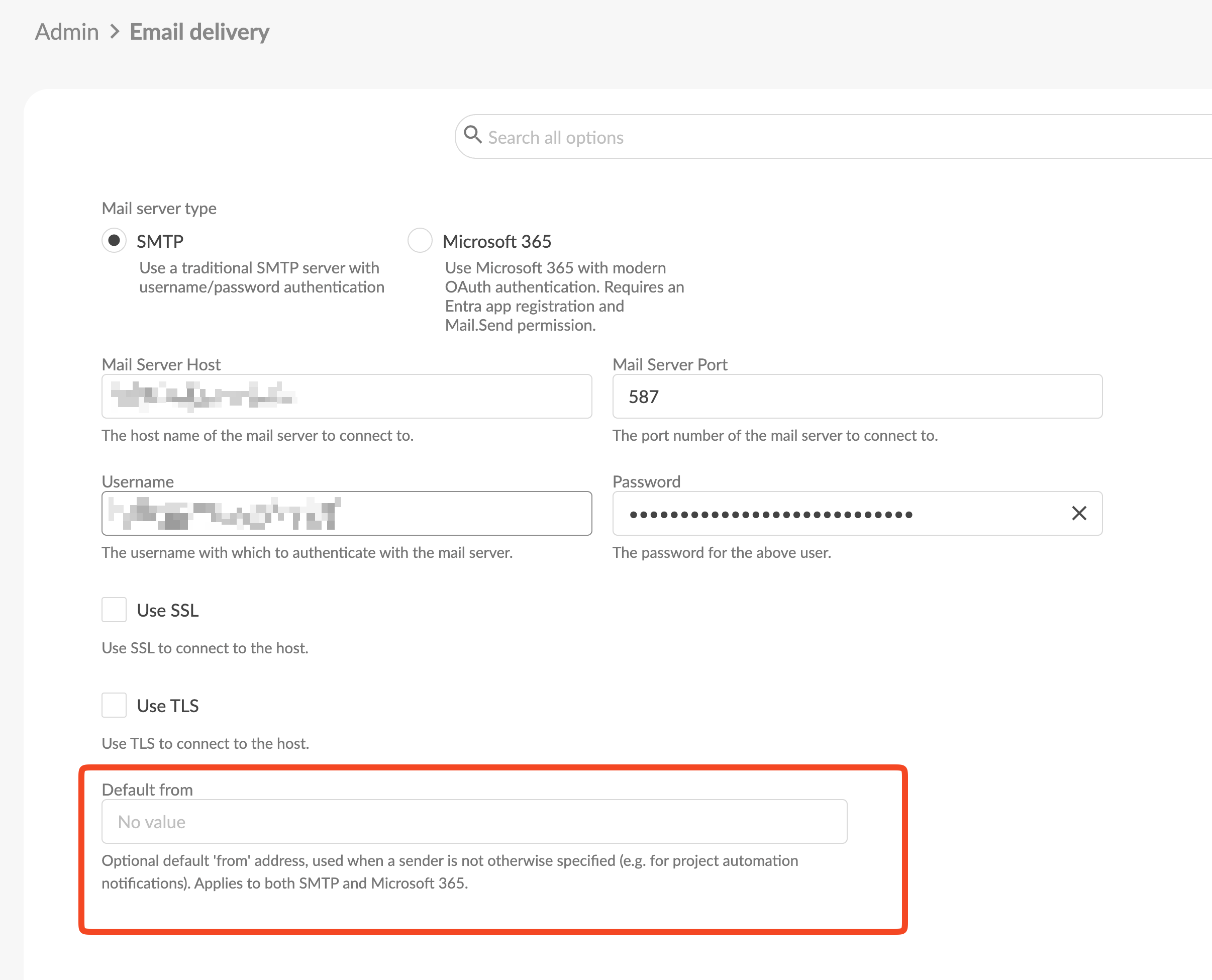
Automation emails are sent from one address, set once for the whole server. Until it is set, the emails cannot go out.
Go to Admin > Email delivery.
Choose how mail leaves the server: SMTP (host, port, username and password) or Microsoft 365 (connect the tenant).
Just below that switch, set Default from to the address automation emails should come from, for example automation@yourcompany.com.
Whoever configures an automation only ever enters recipients, never mail-server details, so there is nothing to get wrong project by project.
To include a working link back to the project in these emails, also set the External URL domain in Admin > Web server. Without it the emails still send; they just carry no clickable link.
How do I retry a run that fails?
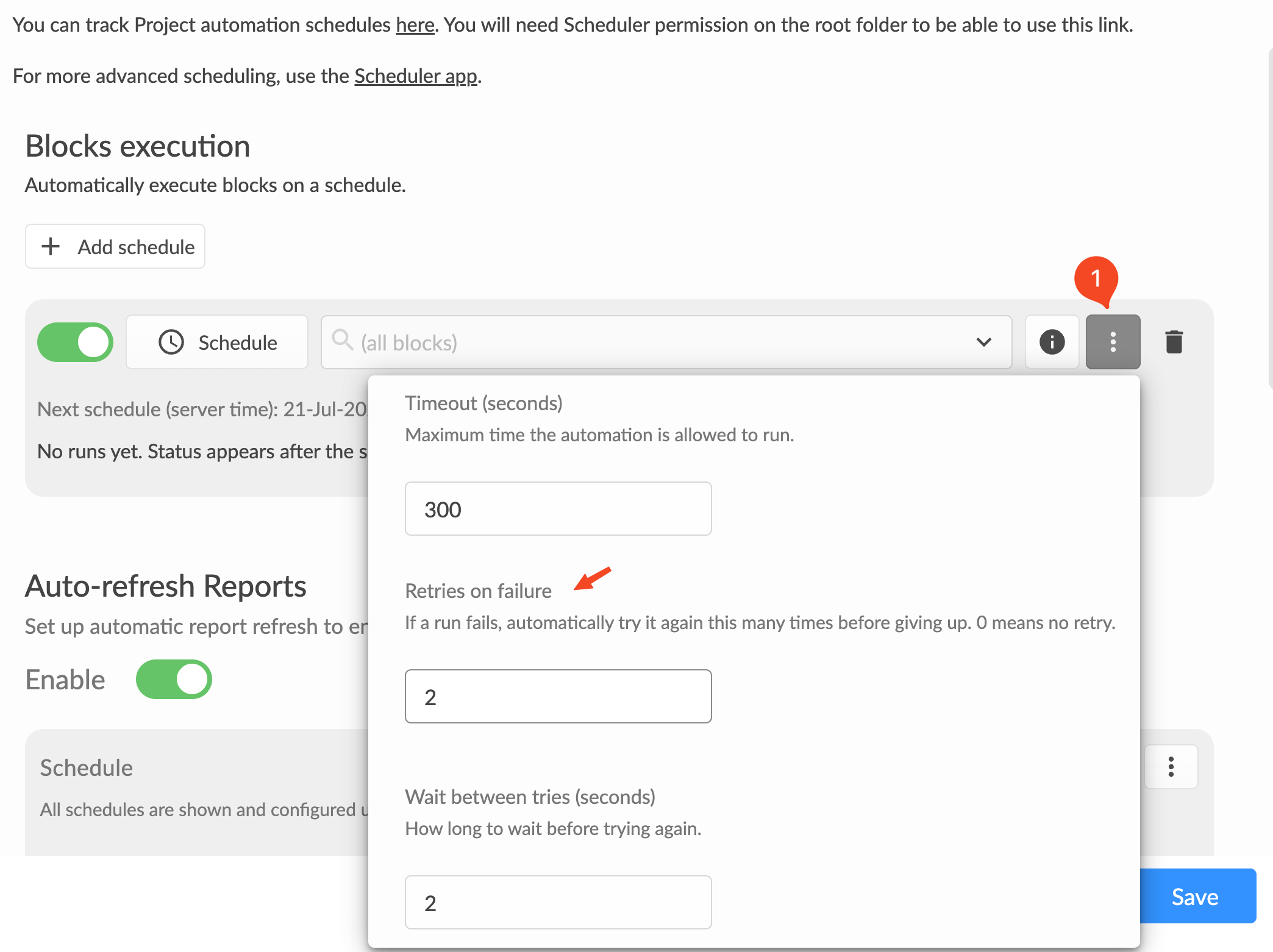
Retry settings sit next to the existing Timeout, in the more-options for each automation:
In the Automation dialog, open the more-options for the automation you want.
Set Retries on failure to how many extra attempts to make (up to 10; 0 means no retry).
Set Wait between tries (seconds) to how long to pause before each retry.
For example, 3 retries with a 60-second wait means a run that fails at 06:00 waits a minute and tries again, up to three more times, before it counts as a real failure. If the warehouse was just slow to wake, the second attempt usually succeeds and nobody is disturbed.
Retry is set per execution, the same way the timeout is, so each scheduled thing carries its own policy. A failure email, if you have configured one, is sent once, after the retries are used up, not on every attempt.
A worked example
Take a project called Regional Sales Daily. It refreshes overnight from the warehouse, and the commercial team opens it at 09:00. Configured once, it would look like this:
Auto-refresh Reports on, Daily at 06:00.
In the more-options: Retries on failure 3, Wait between tries 60. The warehouse is often slow at 06:00, so a first attempt that times out simply tries again.
Email notification on. Notify on success: commercial-team@company.com. Notify on failure: data-engineer@company.com.
Most mornings the refresh succeeds, sometimes on the second attempt, and the commercial team gets a "your numbers are ready" email with a link. On a morning the warehouse is genuinely down, all the attempts fail and the data engineer gets an email with the error log attached, usually before anyone in the business has noticed. Transient blips disturb no one, and a real outage reaches the person who can fix it first.
Where can I see my automations?
An enabled automation appears in the Scheduler app > Project schedules page, and in the Automation dialog on the project itself. The notification and retry settings you chose are part of that automation.
How do I check what happened?
If a run fails or behaves unexpectedly, open the Scheduler logs and search for your project name to see when it ran, whether it succeeded, and any errors. If you set a failure notification, the same error log arrives by email as ErrorLog.txt.
Was this article helpful?
That’s Great!
Thank you for your feedback
Sorry! We couldn't be helpful
Thank you for your feedback
Feedback sent
We appreciate your effort and will try to fix the article