- Go to Microsoft Entra admin center (Entra ID)
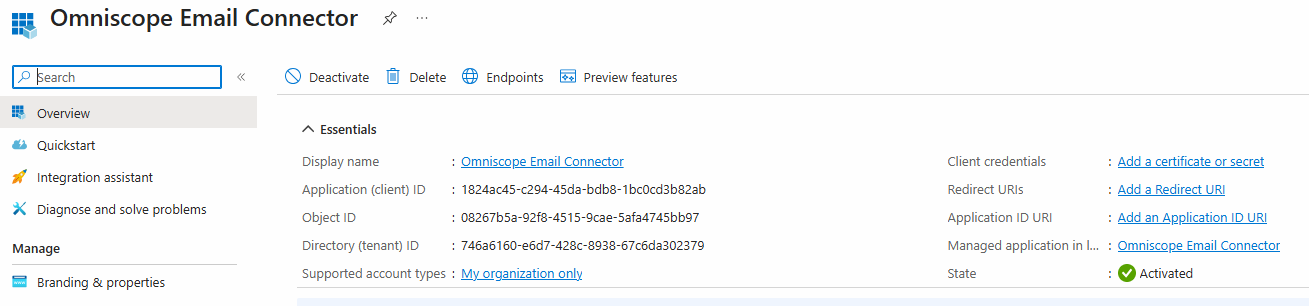
- Applications → App registrations → New registration
- Name: e.g.
Omniscope Email Connector (App-Only) - Supported account types: typically Accounts in this organizational directory only
- Click Register
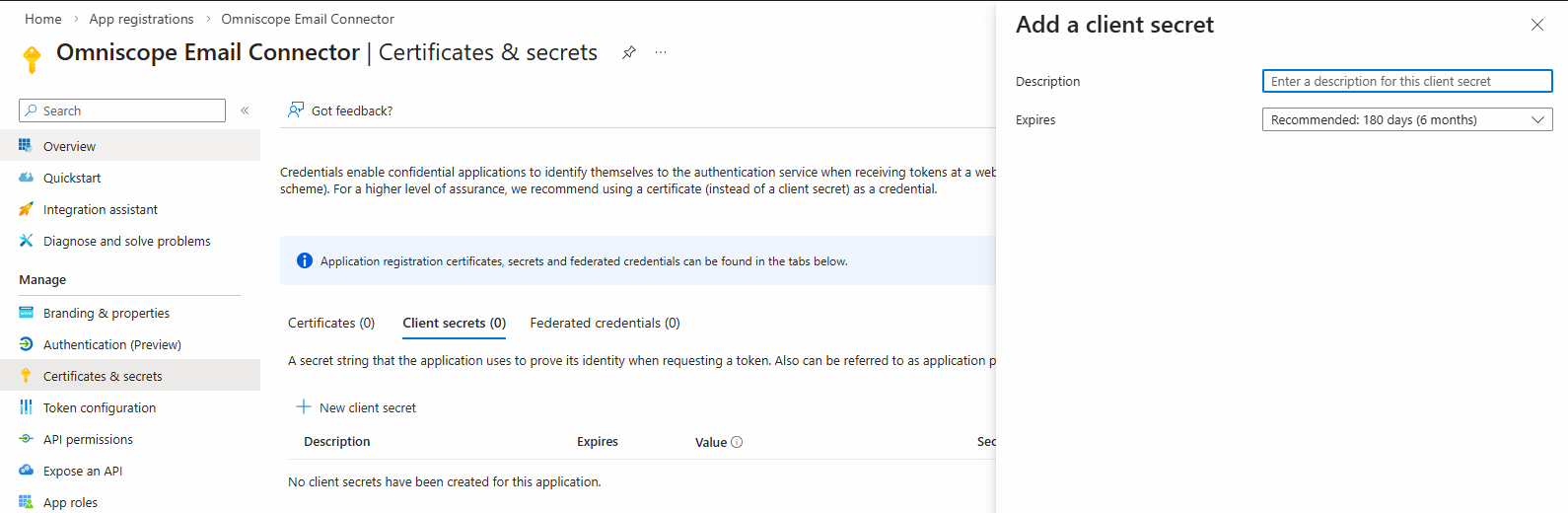
- In the app: Certificates & secrets
- Client secrets → New client secret
- Choose an expiry that aligns with your ops policy (longer = fewer outages)
- Click Add
- Copy the Value immediately
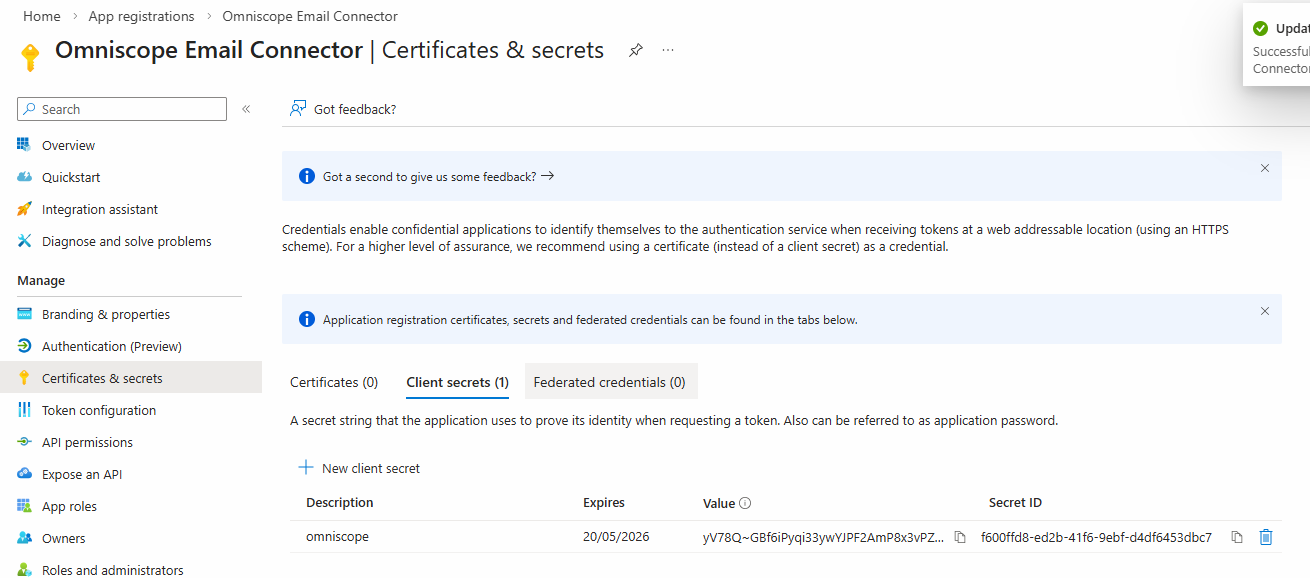
 Important: you must copy the Value.
You cannot retrieve it later.
Do not confuse it with the “Secret ID”.
That Value is
clientSecret.3) Add Microsoft Graph permissions (application permissions)
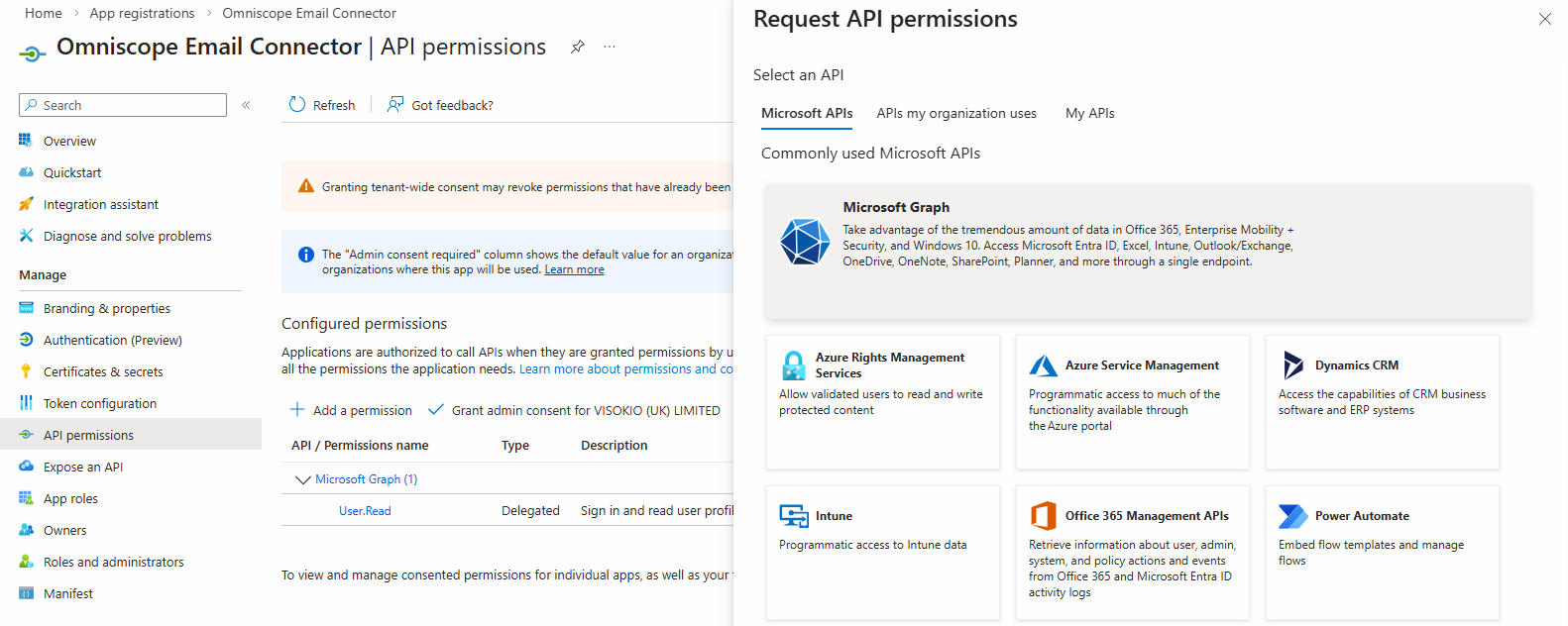
- App → API permissions → Add a permission
- Choose Microsoft Graph
- Choose Application permissions
- Add the required Microsoft Graph application permissions:
Mail.Read - required for reading emails using the Microsoft 365 connector.
Mail.Send - required if you want Omniscope to send emails using Microsoft 365
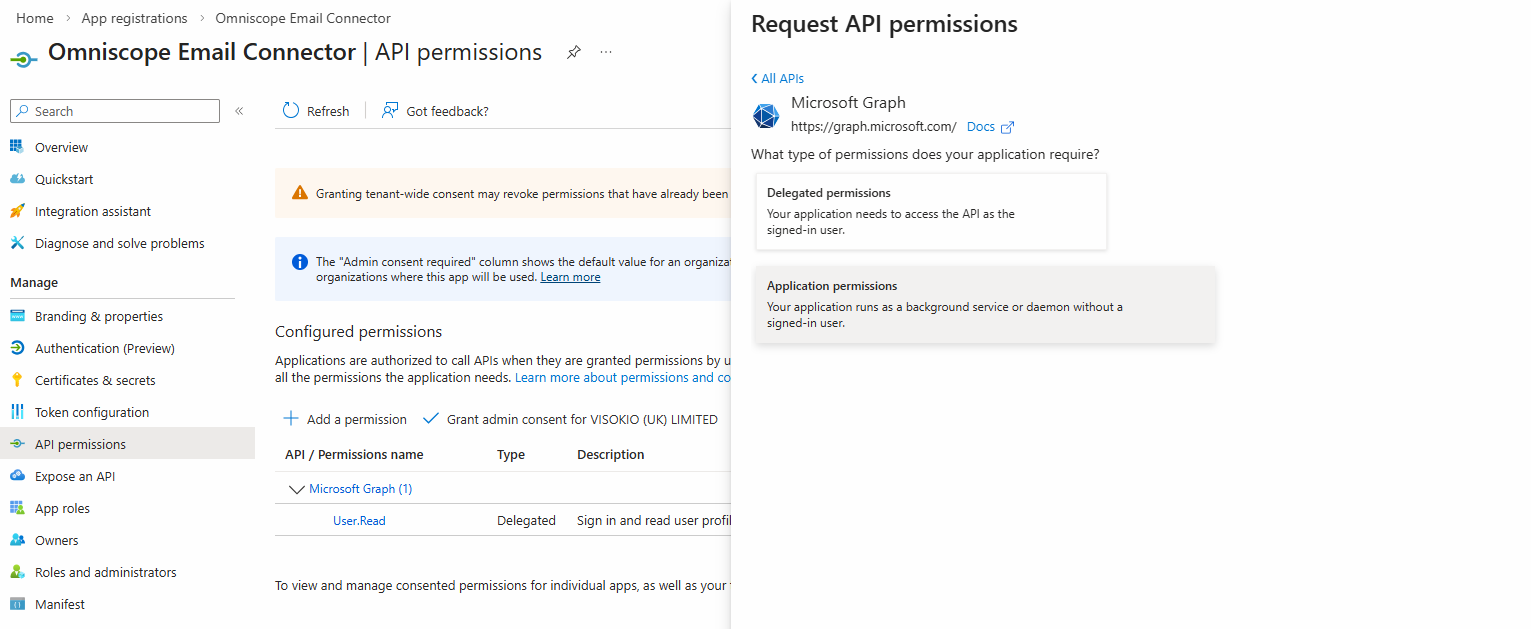
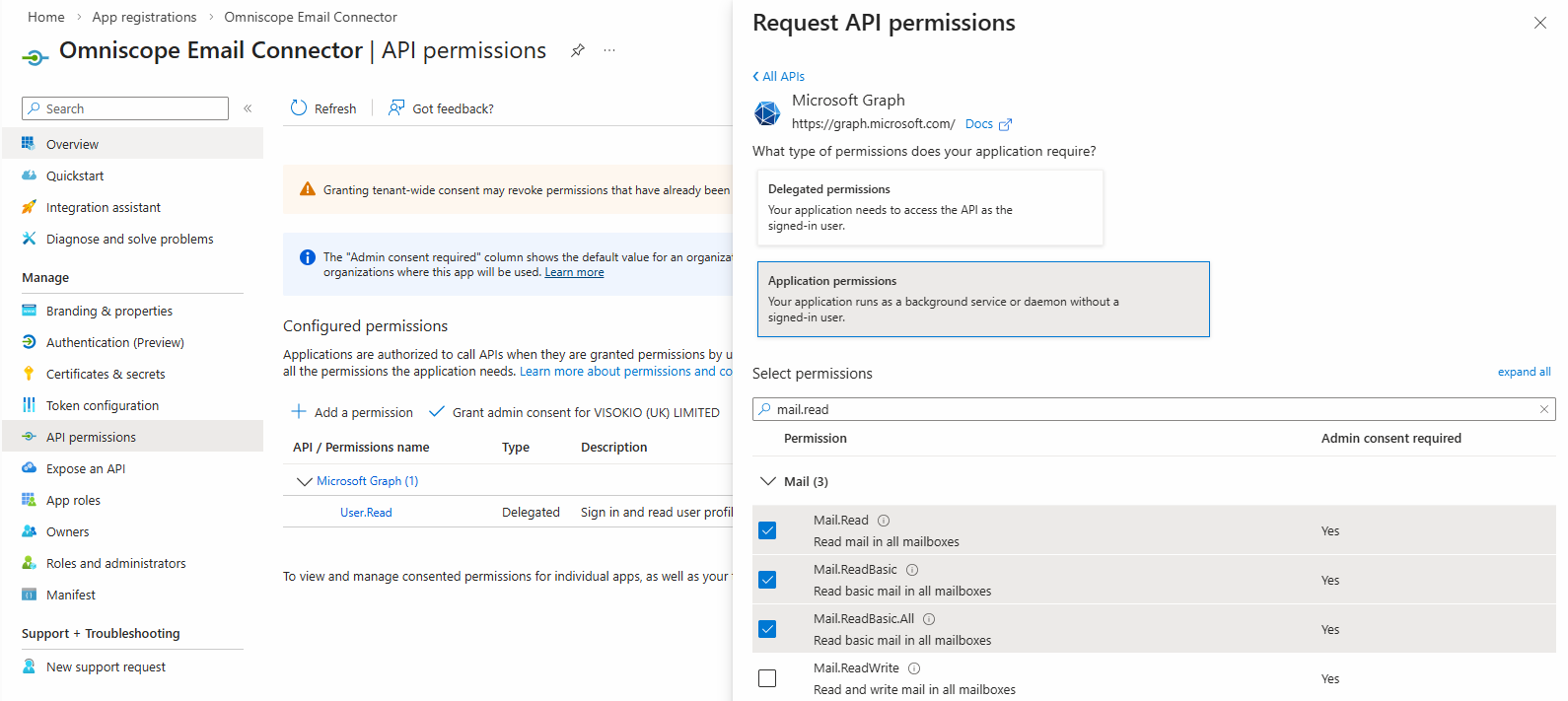
Then:
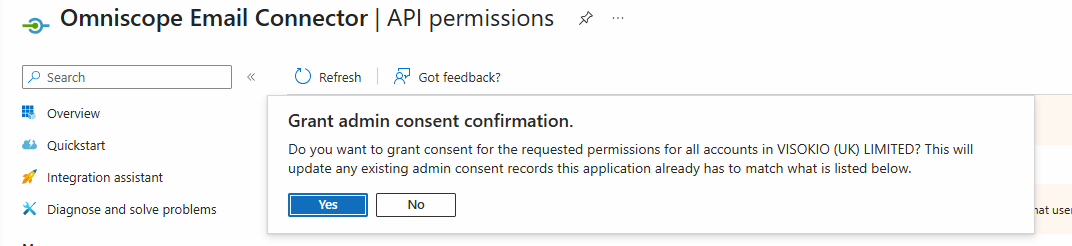
- Click Grant admin consent (required)
Without admin consent, Graph calls will fail with 403.

Microsoft Graph application permissions such as `Mail.Read` and `Mail.Send` can be broad by default. To enforce least privilege, restrict which mailboxes the application can access in Exchange Online.
Microsoft currently recommends using **Application RBAC for Exchange** for this: https://learn.microsoft.com/exchange/permissions-exo/application-rbac
Application Access Policies are the older mechanism and may still be available in some tenants: https://learn.microsoft.com/exchange/permissions-exo/application-access-policies
The exact configuration depends on your organisation's Microsoft 365 environment and security policies. This configuration is performed in Microsoft 365 / Exchange Online, not in Omniscope.
Was this article helpful?
That’s Great!
Thank you for your feedback
Sorry! We couldn't be helpful
Thank you for your feedback
Feedback sent
We appreciate your effort and will try to fix the article